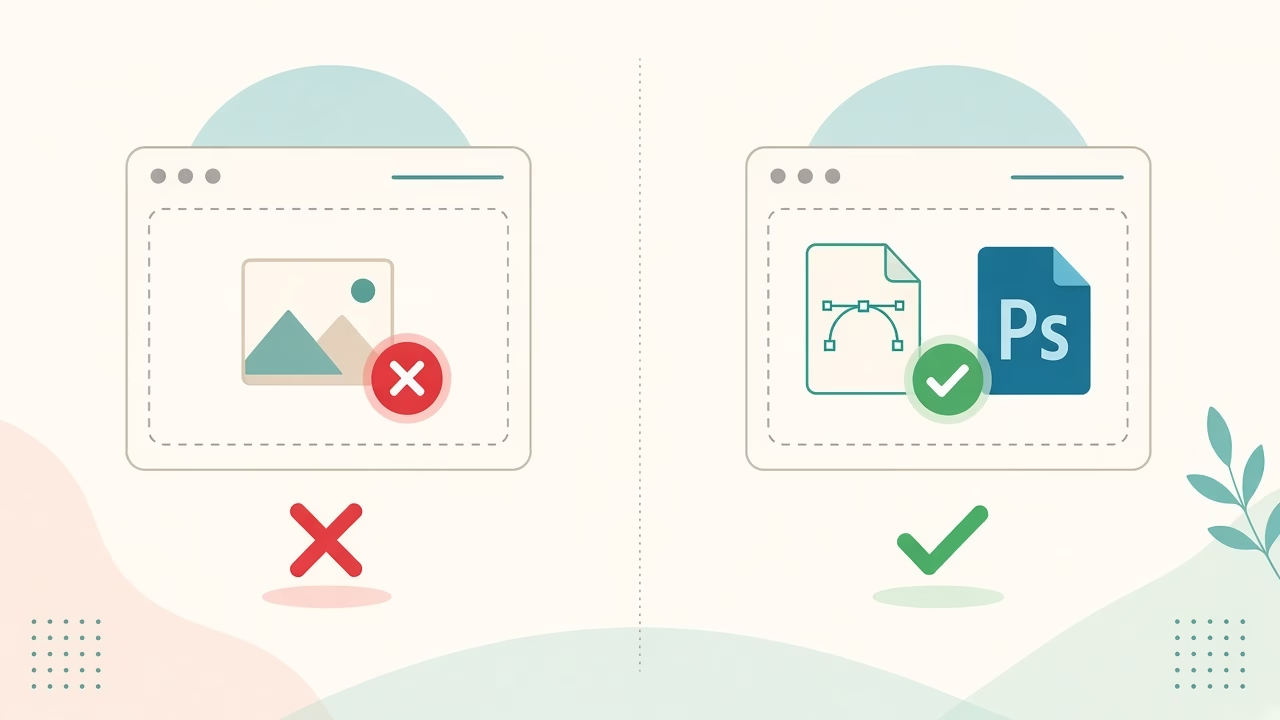
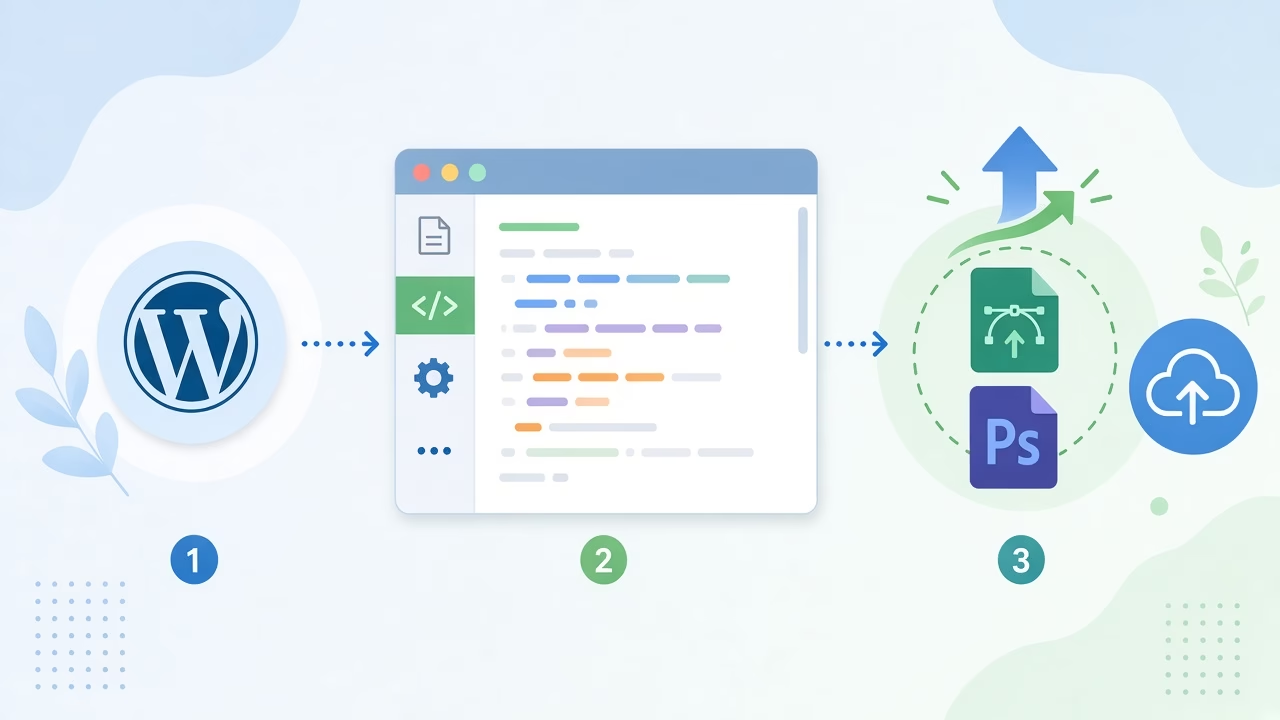
I often need SVG icons or a PSD from a designer in the Media Library. WordPress blocks those by default, so I use a short filter when I want to add additional file types to be uploaded in WordPress without installing another plugin.
Why Add Additional File Types to Be Uploaded in WordPress
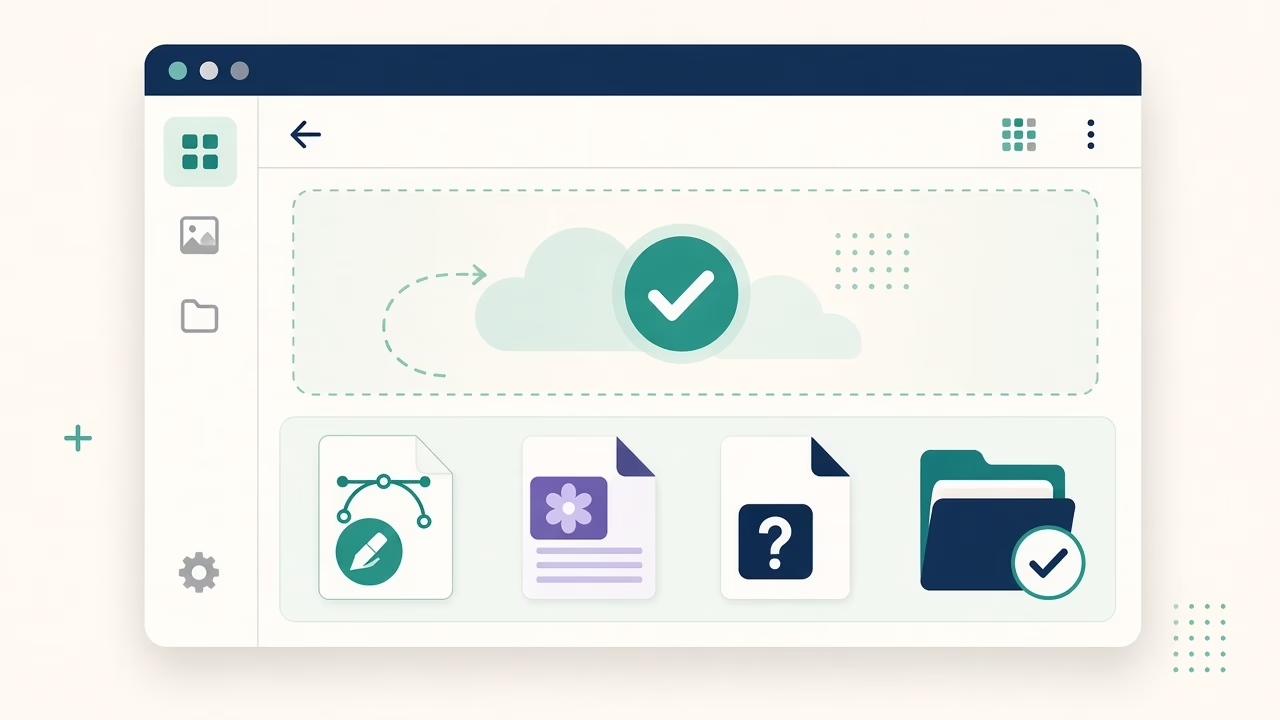
Core keeps a whitelist of allowed MIME types for safety. That is good, but it also means common design files get rejected with a “not allowed” message. One upload_mimes filter is enough for most sites.
Simple Code to Allow Extra Uploads
Drop this into your child theme’s functions.php. The snippet below allows SVG and Photoshop files. Swap the keys for any other extension you need, and match the correct MIME string.
function my_myme_types( $mime_types ) {
	$mime_types['svg'] = 'image/svg+xml'; //Adding svg extension
	$mime_types['psd'] = 'image/vnd.adobe.photoshop'; //Adding photoshop files

	return $mime_types;
}

add_filter( 'upload_mimes', 'my_myme_types', 1, 1 );
After saving, try uploading again from Media → Add New. If it still fails, clear any object or page cache and confirm you edited the active child theme, not a parent you will overwrite on update.
WordPress documents the filter on the upload_mimes hook reference. For related media path tweaks, see Change Upload Directory for Specific File Types.
Prefer a Code Snippets Plugin?
I skip theme edits on client sites when I can. A snippets plugin such as Code Snippets or WPCode keeps this MIME whitelist change out of functions.php, so a theme swap does not wipe it.
Create a new PHP snippet, paste the same function, and set it to run everywhere (or at least in the admin, where uploads happen). Activate once, then test with a small SVG.
Tip: name the snippet something obvious like “Allow SVG and PSD uploads.” If an upload still fails, disable only that snippet first—easier than hunting through a long functions.php.
Quick Tips Before You Widen Uploads
- Only allow types you truly need. Extra MIME types increase attack surface.
- SVG can include scripts. Trust the source, or sanitize SVGs before they go live.
- Some hosts still block certain extensions at the server level. If WordPress accepts the file but the server rejects it, check host rules next.
- Keep a child theme or a snippets plugin so updates do not remove the filter.
FAQ: Extra File Types in WordPress
Do I need a plugin to allow SVG or PSD uploads?
No. The upload_mimes filter in a child theme or a snippets plugin is enough for most cases.
Can I add more than SVG and PSD?
Yes. Add another line with the extension as the array key and the correct MIME type as the value, then return the array.
Why does WordPress still reject my file?
Wrong MIME mapping, a security plugin, or server rules can still block the upload. Double-check the extension spelling and test with the snippets plugin disabled briefly if you suspect a conflict.
Is allowing SVG safe?
SVG is XML and can carry scripts. Only upload files from people you trust, or use a sanitizer before publishing them on the front end.
Wrap-Up
That is all I use when I need to add additional file types to be uploaded in WordPress: one filter, the right MIME strings, and a quick Media Library test. Keep the list short, prefer a child theme or snippets plugin, and you stay clear of a dedicated MIME plugin for this job.