I still catch myself hammering the up arrow when a long Docker or cd path is sitting in history. These 10 Linux terminal tricks are the ones I actually keep on my muscle memory—bash and most zsh setups behave the same way.
Why These 10 Linux Terminal Tricks Matter
None of this needs a new tool. It is just the shell you already have: history search, last-argument reuse, safer root writes, brace expansion, and a couple of readline shortcuts. Learn them once and every SSH session feels lighter.
1. Ctrl + R — Search Your History
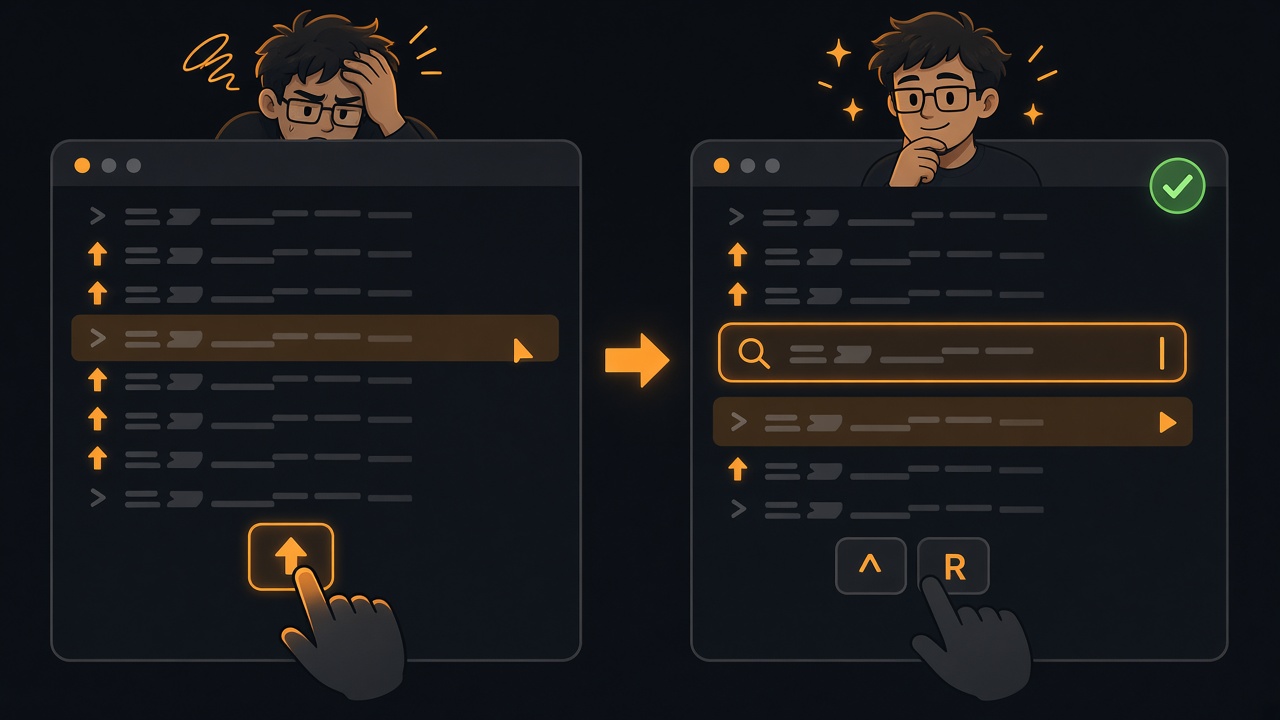
Press Ctrl + R, type a fragment like docker, and reverse-i-search jumps to the matching command. Hit Enter to run it, or keep typing to narrow the match.
2. sudo !! — Rerun the Last Command as Root
Forgot sudo? !! expands to the previous command. Prefix it and move on.
3. Alt + . — Reuse the Last Argument
After a long path shows up once, press Alt + . (or Esc then . on some Mac keyboards) to paste that last argument into the current line. Great after ls when you want to cd into the same folder.
4. cd – — Jump Back to the Previous Directory
Toggle between two folders without retyping either path. Perfect when you bounce between a project and /var/log/nginx.
$ cd /var/log/nginx
$ cd -
/home/alex/projects/website
$ cd -
/var/log/nginx
5. Ctrl + A / E / U — Fix the Line Fast
Long commands break at the wrong flag. Jump and edit instead of holding the left arrow:
Ctrl + A— start of the lineCtrl + E— end of the lineCtrl + U— cut everything before the cursor (often the whole line)Ctrl + W— delete the previous word
6. | sudo tee -a — Write Root-Owned Files
sudo echo … > /etc/hosts still fails because the redirect runs as you. Pipe into tee instead so the write happens as root:
$ echo "10.0.0.5 api.local" | sudo tee -a /etc/hosts
10.0.0.5 api.local
7. Brace Expansion — Expand Lists and Ranges
Create folders, numbered files, or clear patterns without a loop. Handy when I tidy Downloads or spin up quick test files.
$ mkdir -p project/{src,tests,docs}
$ touch test{1..10}.txt
$ rm -f ~/Downloads/*.{zip,dmg,pkg}
If you are reclaiming disk space on a whole machine, I also keep a longer checklist in Clean Up a Linux System to Free Up Disk Space.
8. Ctrl + U / Y — Park a Command for Later
Halfway through a long tar line and need to run something else first? Ctrl + U cuts the line into the kill-ring. Run the other command, then Ctrl + Y yanks the parked line back.
$ tar -czf backup.tgz ~/proj   # Ctrl+U to cut
$ ls ~/projects
$ # Ctrl+Y pastes the tar command back
9. Ctrl + Z / fg — Suspend and Resume
Stuck in a foreground process? Ctrl + Z suspends it. Finish the urgent task, then type fg to bring it back.
$ # long process running…
^Z
[1]+  Stopped
$ fg
10. alias — Your Own Shortcuts
Wrap the commands you type every day. Put them in ~/.bashrc or ~/.zshrc so they survive new sessions.
alias ll='ls -lah'
alias gs='git status'
alias ..="cd .."
Quick Cheat Sheet
Ctrl + R— history searchsudo !!— rerun as rootAlt + ./!$— reuse the last pathcd -— previous directoryCtrl + A/E/U— move and cut the line| sudo tee -a— append to root-owned files{a,b,c}/{1..10}— brace expansionCtrl + U/Y— park and restore a commandCtrl + Z/fg— suspend and resumealias— short names for long commands
On a Mac I also lean on Terminal for system tweaks—like increasing trackpad speed beyond the System Settings limit—but these ten work anywhere you have a proper shell.
FAQ: 10 Linux Terminal Tricks
Do these work in zsh on macOS?
Yes for almost all of them. History search, cd -, brace expansion, aliases, and the Ctrl line edits work in zsh. Alt + . may need Option as Meta in Terminal settings.
Is sudo !! safe?
Only if you are sure what the last command was. Glance at the expansion before you press Enter—especially after destructive rm lines.
Why does sudo echo fail for /etc files?
The shell opens the redirect before sudo runs. Use | sudo tee (or tee -a) so the privileged process owns the write.
Where should I save aliases?
Put them in ~/.bashrc, ~/.bash_aliases, or ~/.zshrc, then open a new terminal or source the file.
Wrap-Up
That is my working set of 10 Linux terminal tricks: search history, fix the last command as root, reuse paths, toggle directories, edit lines quickly, write root files with tee, expand braces, park commands, suspend jobs, and alias the rest. Pick two this week and they will stick.